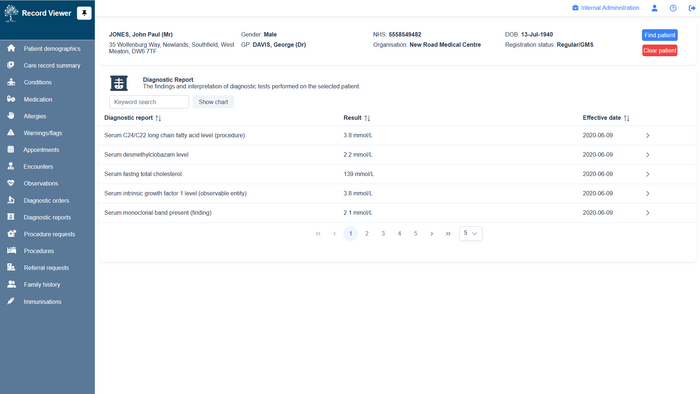
#[[File:Diagnostics reports.jpg|thumb|600x600px|Example Diagnostics reports screen|alt=]][[Accessing Record Viewer|Access Record Viewer]].
#[[File:RecordViewer Reports Page.png|alt=|thumb|700x700px|Example Diagnostics reports screen]][[Accessing Record Viewer|Access Record Viewer]].
#If required, in the [[Record Viewer/Patient demographics/RV navigation side menu|Record Viewer navigation side menu]], click <i class="fas fa-x-ray fa-lg"></i> '''Diagnostic reports''' .
#If required, in the [[Record Viewer/Patient demographics/RV navigation side menu|Record Viewer navigation side menu]], click <i class="fas fa-x-ray fa-lg"></i> '''Diagnostic reports''' .
#:Diagnostic reports displays the following details for the '''selected patient''':<span class="mw-customtoggle-demographic fad fa-fw fa-lightbulb green-tip"></span>
#:Diagnostic reports displays the following details for the '''selected patient''':<span class="mw-customtoggle-demographic fad fa-fw fa-lightbulb green-tip"></span>
Line 18:
Line 18:
#:*'''Result'''
#:*'''Result'''
#:*'''Effective date'''
#:*'''Effective date'''
# Click <i class="fas fa-greater-than"></i> to expand specific conditions and display the following details:
# Click <i class="fas fa-greater-than"></i> to expand specific diagnostic reports and display the following details:
#:*Source of data
#:*Source of data
#:*Practitioner
#:*Practitioner
{{Filter}}
{{Filter}}
<span id="trend chart"></span>
<br />
== View trend charts ==
== View trend charts ==
#[[Access Record Viewer]].
#[[File:Trend chart.jpg|thumb|700x700px|Example Trend chart|alt=]][[Access Record Viewer]].
#Select the required diagnostic item check box(es), and then click
#Select the required diagnostic item check box(es), and then click <i class="fad fa-analytics"></i> to display a trend chart.
#If required, in the '''Date from''' and '''Date to''' fields, type the dates that you want the chart to cover, or click <i class="fas fa-chevron-down"></i> to use the calendar functions.
#If required, in the '''Select series''' field, select the items that you want to display on the chart.
#If required, select one or more of the following options to format the trend chart:
#:*Show gridlines
#:*Show area chart
#:*Gradient fill
#:*Logarithmic
#:{{Tip| Hover over the chart to show details of individual items: date, diagnostic test, and value.}}
'''See also:'''
'''See also:'''
Latest revision as of 21:55, 4 December 2025
Diagnostic reports displays the findings and interpretation of diagnostic tests performed on the selected patient.
Diagnostic reports displays the following details for the selected patient:
Patient demographic bar The selected patient's demographic details (name, address, gender, usual GP, NHS number organisation, date of birth, and registration status are displayed throughout Record Viewer. Click Swap patient to select and view details for a different patient.
Battery
Diagnostic report
Result
Effective date
Click to expand specific diagnostic reports and display the following details:
Source of data
Practitioner
Filter Use a text search to narrow down the displayed items; matching items are displayed as you type the required search term.